Elf Launcher
2.0.2
Version 2.0.5, a full overhaul

Every payload, one press away on your PS5.

Elf Launcher is a home screen and browser launcher for ELF payloads on a jailbroken PS5. Browse a curated catalog, keep your payloads on the console, run them automatically after every jailbreak, and manage files, backups and power from one page.

Download 2.0.5 Open the live page Source on GitHub

Free and open source. Developed by X-F1REBALL-X.

Elf Launcher home screen

What it is

A small payload that runs on the console, installs a home screen tile, and serves the launcher page on port 1000. Open it from the tile, from the PS5 browser, or from your phone or PC on the same network.

Catalog of payloads

About 60 payloads in nine colored folders: loaders, HEN, game library, mods, files, network, media, system and dev tools. Download once, load any time.

AutoPayload

Mark payloads to load by themselves after every jailbreak, with profiles, a start delay and an option to go straight back to the home screen.

Console tools

File manager for the whole console, text editor with backups, running processes, event log with crash watch, and power controls.

Always up to date

Saved payloads are checked against their latest releases. Update one or all in a press. The launcher updates itself the same way.

Quick launch

Pin as many favorites as you like. They come first in every payload list and in Quick launch. Recent and downloaded payloads fill the rest.

Backup and Restore

Save settings, profiles, pins and your payload list to USB or /data, and bring everything back on a clean console.

Install

You need a jailbroken PS5 with an ELF loader listening on port 9021 (elfldr). Elf Launcher does the rest.

  1. Jailbreak the consoleUse your usual exploit (for example WK Autoloader) and make sure elfldr is running on port 9021.
  2. Send the launcher onceSend elf-launcher.elf from the latest release to port 9021 with any payload sender, or load it from WK Autoloader. It starts the page on port 1000 and installs the Elf Launcher tile under Games.
  3. Open itPress the Elf Launcher tile on the home screen, or open http://<PS5 IP>:1000 in the PS5 browser or on your phone or PC.
  4. Pick your AutoPayloadIn AutoPayload, tap the payloads that should load after every jailbreak, set the start delay, and choose whether the page opens afterwards or the console goes back to the home screen.
Updating from 1.x: press Update in the launcher, or send the new elf-launcher.elf once. The new build takes over port 1000 from the old one, so no reboot is needed.

Using it

Everything works with the DualSense: the D-pad moves, Cross presses, Circle goes back, Square cancels AutoPayload, and holding Options opens the quick menu.

Home

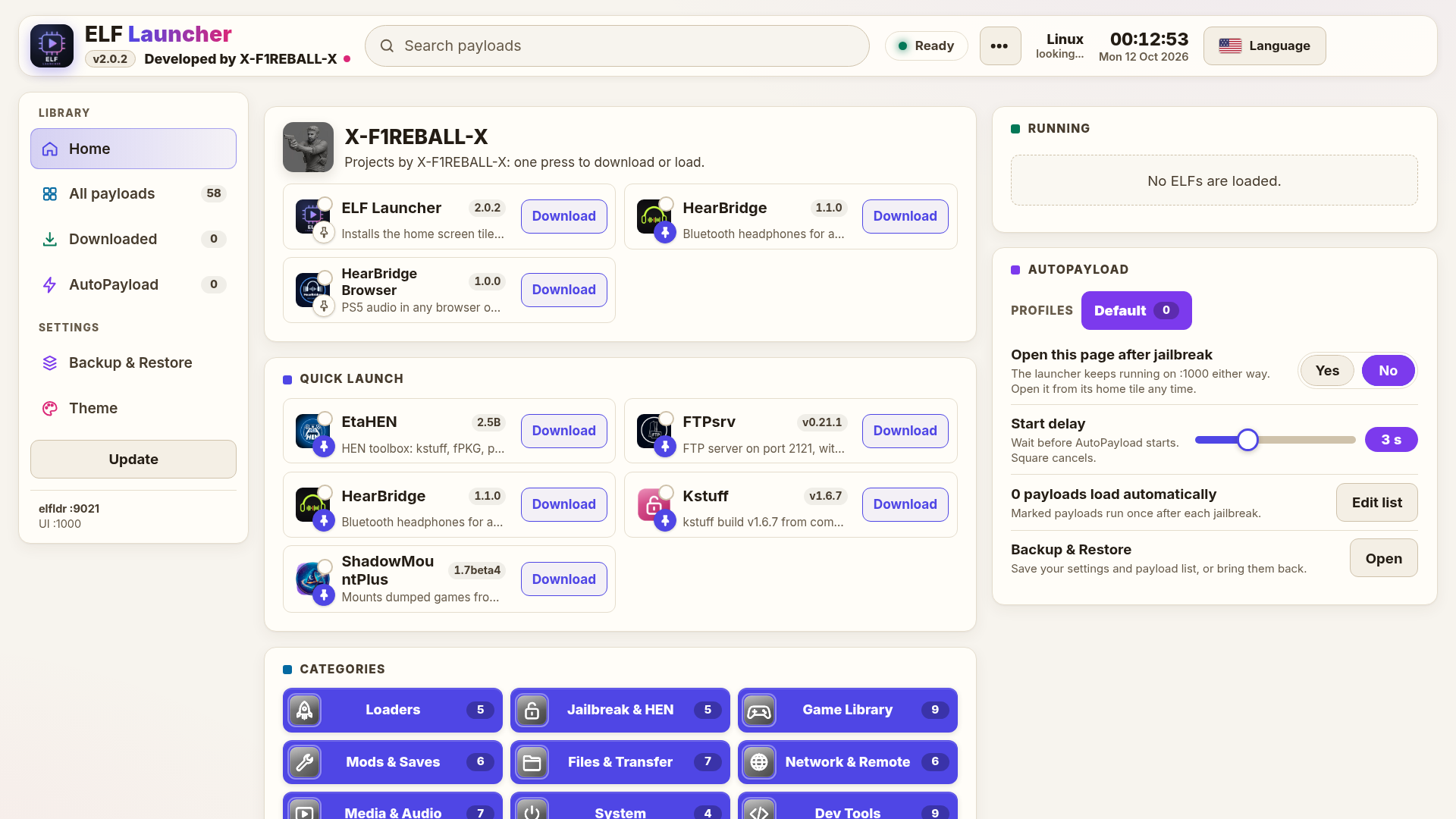
Your projects, Quick launch, the payload folders as colored tiles, what is running right now, Restart, Rest mode and Power off, AutoPayload settings and system info.

All payloads

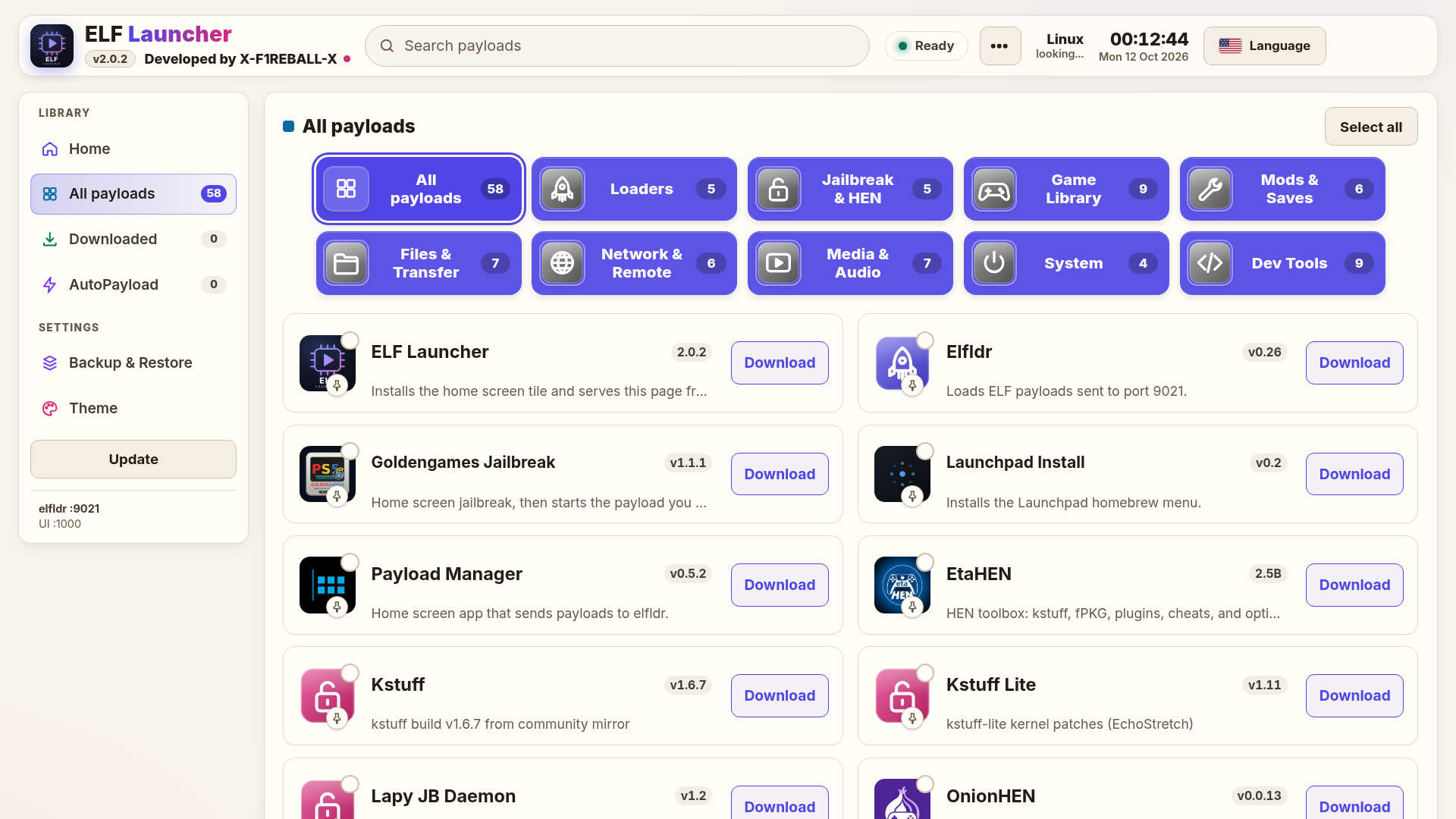
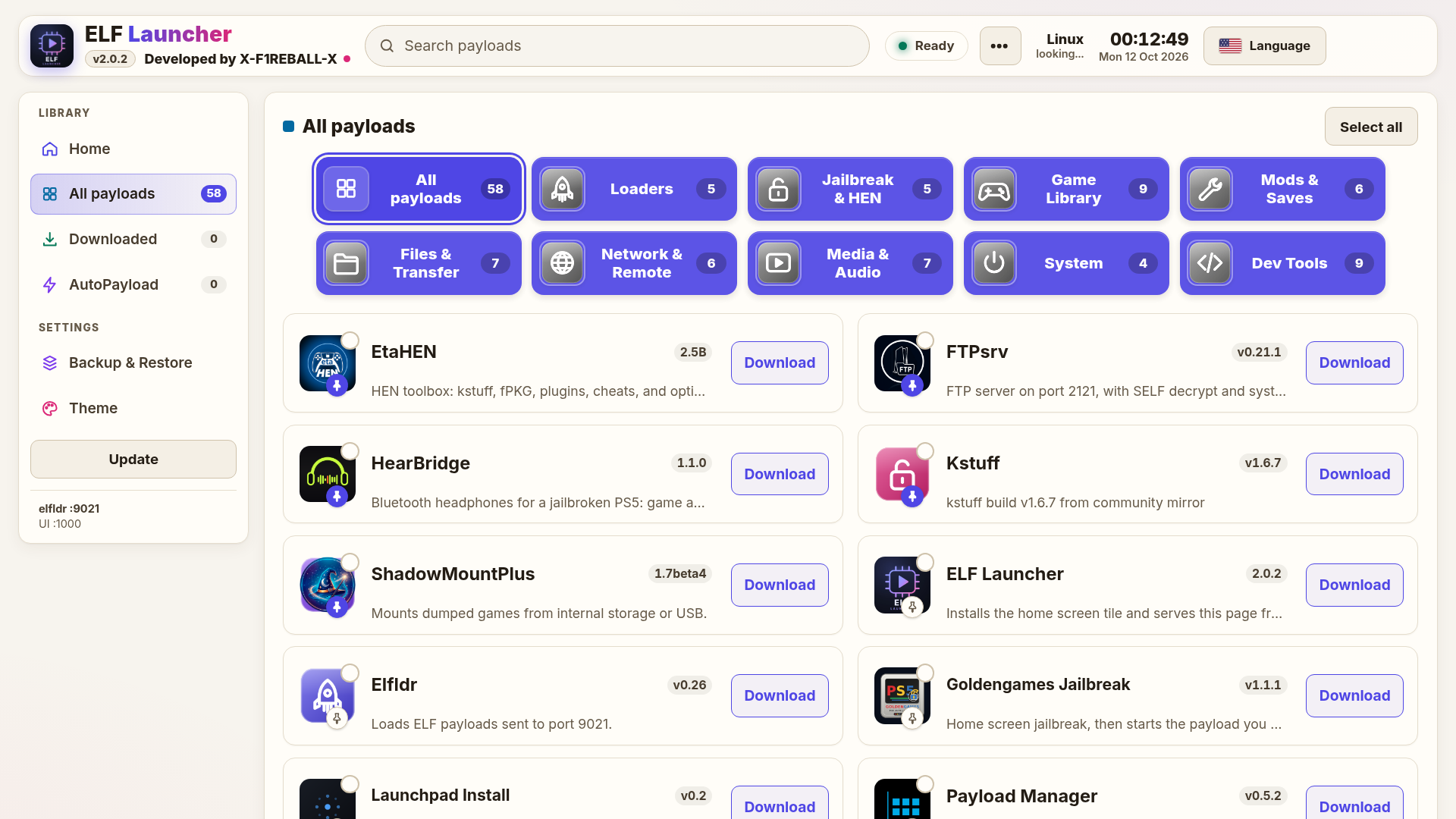
Every payload is listed right away, pinned ones first. Use the folder tiles on top to narrow it down. Press Download to save a payload to the console or Payload to load it. Update appears when a newer build is out. Deleting is not offered here.

Downloaded

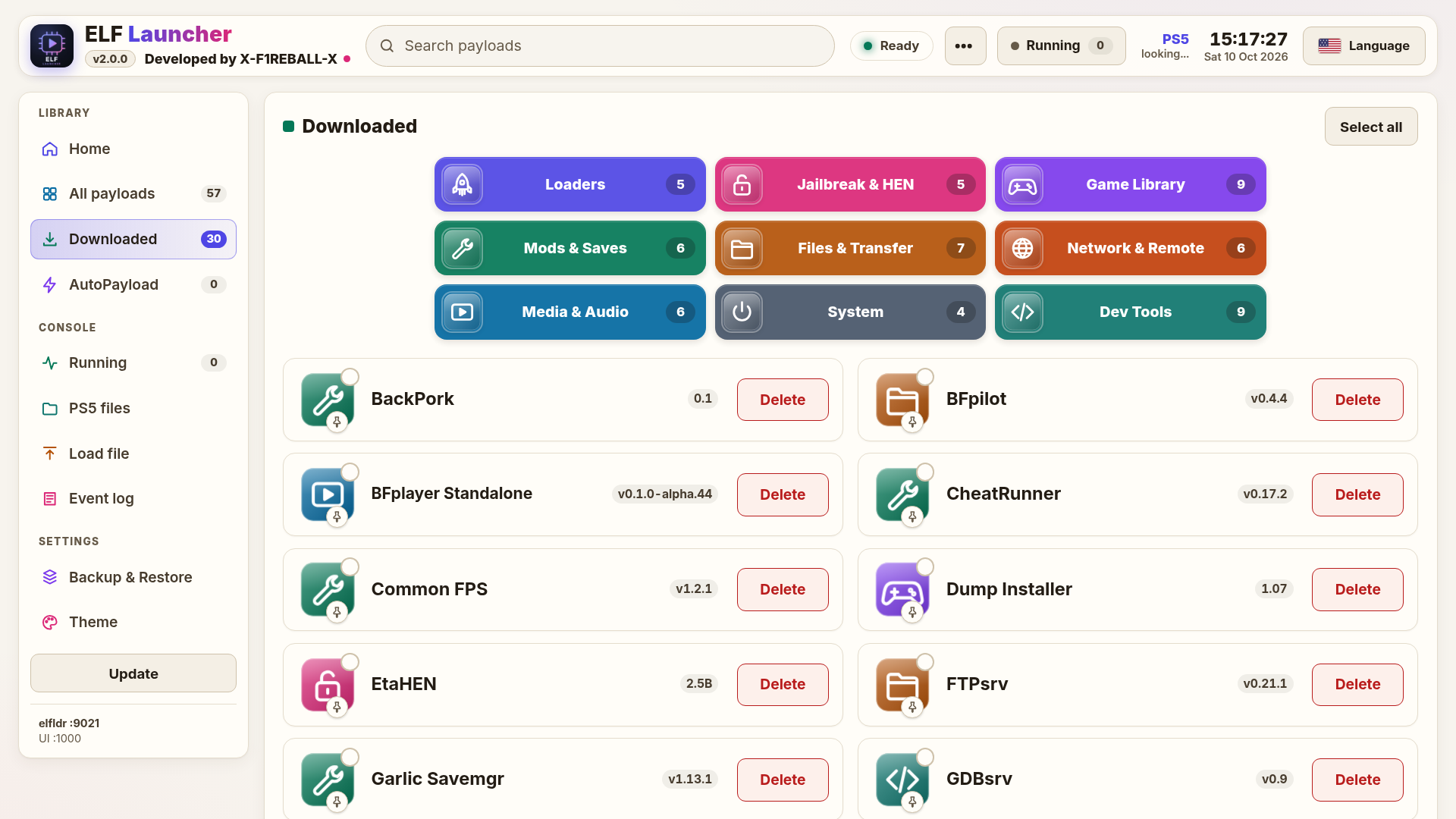
Every payload saved on the console. Update all, load several at once (one every 0.6 seconds), pin to Quick launch, and Delete when you no longer need one.

AutoPayload

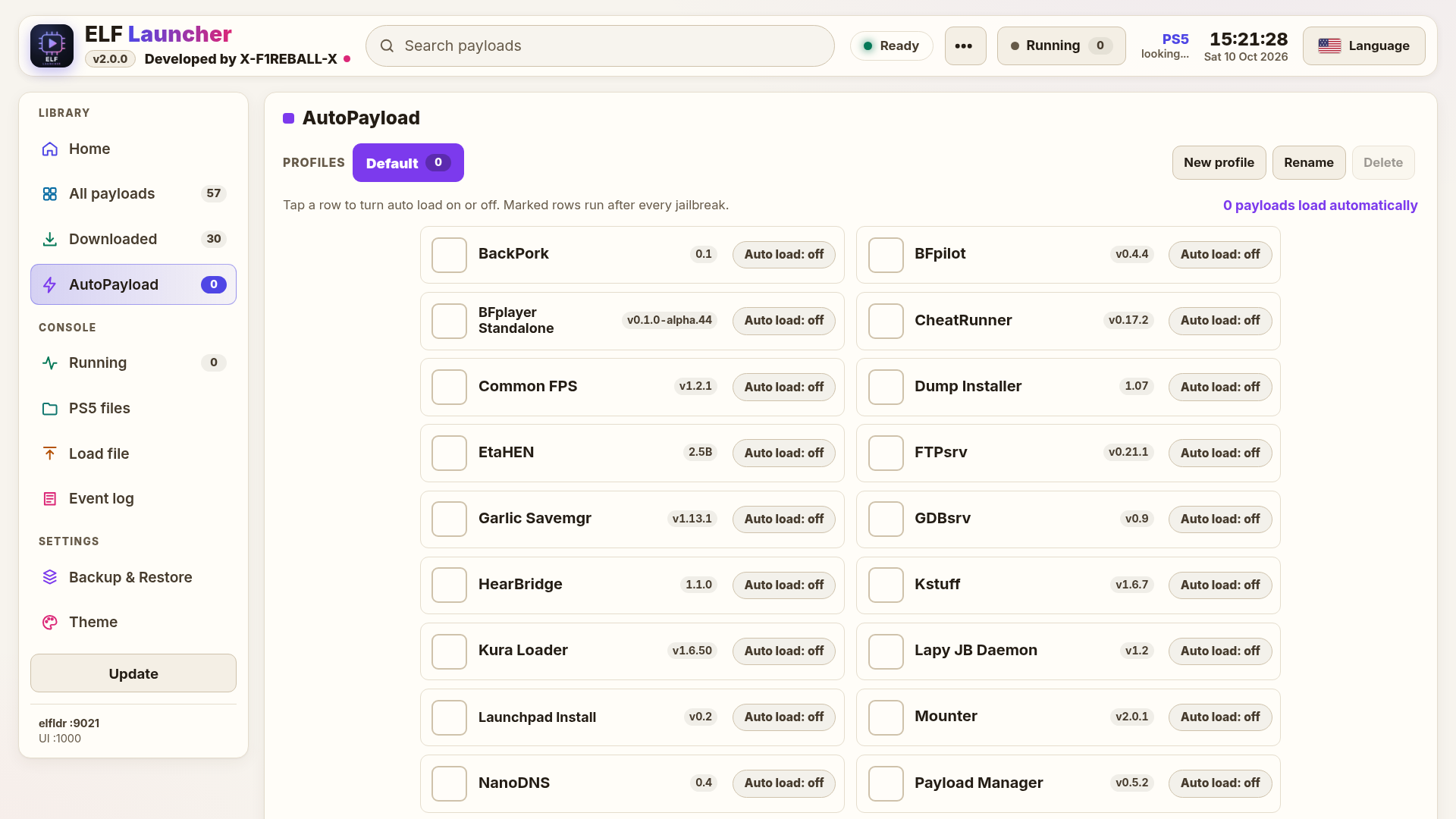
Tap rows to switch auto load on or off, keep several profiles, and set a start delay from 0 to 10 seconds. AutoPayload runs once per jailbreak.

PS5 files and Load file

Browse all drives, copy, move, rename and delete files, edit text files with automatic backups, and load any ELF from USB, from a path, or from your phone or PC.

Running and Event log

See and stop running payloads. The event log lists every load, error and crash with its time.
What's new in 2.0.4

Folders and phones

  • Folder tiles are gray now, and every folder icon has its own color.
  • The page works on phones and tablets: a slide-out menu, stacked cards and bigger touch targets.
  • A Loaded folder shows what is running, with a Kill button for each payload.
  • A My files folder holds the payloads you put on the console yourself. Copies of catalog payloads merge into their catalog tile.
  • Bigger payload cards on the TV, and more payloads show their own project icon.

What's new in 2.0.3

Quick launch and catalog

  • Quick launch on Home now shows every pinned payload, not just six.
  • The catalog updates itself every day from the authors' official releases, so new versions show up without a launcher update.
  • 33 new payloads and 7 updated ones.
  • Official sources only: unofficial re-uploads and duplicate entries were removed, and elfldr now comes from its official release.

What's new in 2.0.2

Pins and All payloads

  • No more pin limit: pin as many payloads as you like.
  • Pinned payloads sit at the top of All payloads and of every folder, in the order you pinned them.
  • All payloads now lists every payload right away. The folder tiles stay on top if you want to open just one folder.
  • The folder tiles now use one color and are a bit bigger.
  • The WK Autoloader update banner works again.

What's new in 2.0.0

2.0.0 rebuilds the page, the on-console server and the catalog. Here is everything that changed since 1.1.8.

New look

  • New interface: a left menu (Library, Console, Settings), a header with search, status, the running count, PS5 IP, clock and language.
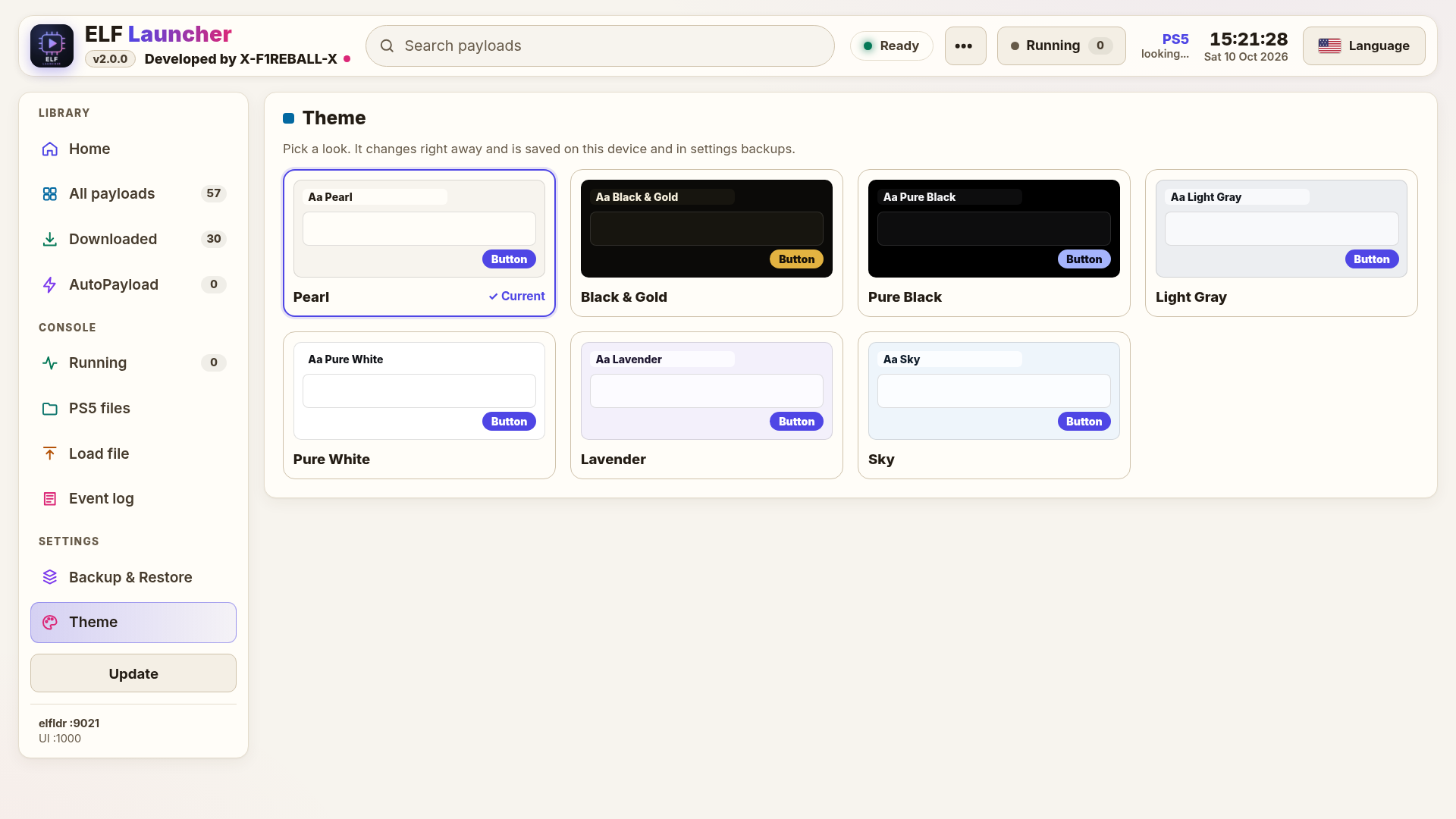
  • Light Pearl theme by default, with bold colored category tiles. Seven themes in Settings > Theme: Pearl, Gray, White, Lavender, Sky, Gold (dark) and Black (dark).
  • Bigger rows and bigger buttons everywhere, made for the DualSense: every action is reachable with the D-pad, nothing sits in a screen corner.
  • Real project icons for the catalog payloads. Payloads without their own icon use the icon of their folder instead of a generic badge.
  • Clean payload names: no ".elf", no version numbers and no "ps5" in names (PS5Upload and ps5debug keep their names), long names split and wrap instead of being cut.
  • 11 languages to choose from in the header. The choice is kept after reload.
  • New home screen icon for the launcher tile, placed under Games.

Home

  • A real home screen instead of a plain list:
    • My projects: Elf Launcher and HearBridge, one press to download or load. Reboot and Rest mode moved to the Power tiles.
    • Quick launch: your pinned payloads first, then recently loaded ones, then downloaded ones (6 tiles).
    • Categories: the payload folders as colored rounded tiles with icon, centered name and count. One press opens the folder in All payloads.
    • Running: what is running on the console right now, with Manage to stop payloads.
    • Power: Restart, Rest mode and Power off tiles.
    • AutoPayload: profile, open after jailbreak, start delay and how many payloads load automatically.
    • Backup and Restore shortcut.
  • System info: CPU, SoC, temperatures, memory, free space on /data and uptime.
  • On narrow screens and phones the home columns stack into one column.

All payloads

  • The catalog is split into nine folders: Loaders, Jailbreak and HEN, Game Library, Mods and Saves, Files and Transfer, Network and Remote, Media and Audio, System, Dev Tools.
  • Folder tiles redesigned: a centered 3 by 3 grid of colored rounded tiles, each with a large folder icon, the folder name centered and the payload count on the right. The open folder gets a ring.
  • Bigger payload banners: taller cards, larger icons, bigger names and descriptions, larger Download, Payload and Update buttons.
  • Delete is no longer offered in All payloads. Deleting a saved payload is only possible from Downloaded, so nothing gets removed by accident while browsing.
  • Multi select: mark several payloads and load them in one go.
  • Search across the whole catalog from the header.

Downloaded

  • Lists every payload saved on the console with its version, Update when the catalog has a newer build, and Delete.
  • Update all: updates every saved payload that has a newer catalog version in one press. The menu shows how many updates are waiting.
  • Load selected: loads the marked payloads one after another, 0.6 seconds apart.
  • Payloads can be pinned to Quick launch from here and from the recent list.

Pinning (new)

  • Pin any payload to Quick launch on the home screen. Pinned payloads come first, in the order you pinned them.
  • Since 2.0.2 there is no pin limit any more.

AutoPayload

  • Profiles: keep several AutoPayload lists (for example one for games and one for homebrew) and switch between them. Create, rename and delete profiles.
  • Tap a row to turn auto load on or off. Only payloads that are saved on the console can be auto loaded.
  • Start delay slider from 0 to 10 seconds in 0.5 second steps (default 3 seconds). Square cancels while it counts down.
  • Open this page after jailbreak: Yes opens the launcher page after AutoPayload, No (Leave closed) runs AutoPayload in the background.
  • Leave closed now really leaves: when the launcher page is not wanted, Elf Launcher goes back to the PS5 home screen after AutoPayload.
  • AutoPayload runs once per jailbreak, never twice, also when a new launcher build takes over.
  • Quieter: no "loader ready", "loader started", "AutoPayload N" or Loaded toasts any more. Toasts only appear when something needs attention (a payload was skipped, the loader is missing, setup failed).

Console tools

  • PS5 files: a file manager for the console. Browse every drive (internal, USB, /data and the whole system read only), copy, move, rename, delete and create folders, with progress for long jobs.
  • Text viewer and editor: open text and config files, edit them, and every save keeps a backup you can restore.
  • Load file: send an ELF from your phone or PC (drag and drop or pick a file), from a USB drive or from a path on the console. Recent loads are listed.
  • Running: list running processes, show all or only payloads, stop a payload safely.
  • Event log: loads, errors and crashes with times. Crash watch reports when a loaded payload crashes. Clear log.
  • Quick menu: hold Options or press the menu button in the header. It shows the last loaded payload with Load again, the AutoPayload profile switch and pinning.

Backup and Restore (new)

  • Save your settings (language, AutoPayload profiles, delay, open after jailbreak, recent list, pins, catalog sources) and your payload list to USB or /data, or download the backup to a phone or PC.
  • Restore shows what will change before it happens, downloads catalog payloads again with sha256 checks and copies your own uploads back.

Updates and catalog

  • Self update: the launcher checks GitHub for a new release on load and every 6 hours, downloads it and switches over live. New builds take over port 1000 from the old one.
  • Catalog payloads are checked against their latest upstream releases, with an Update banner when a saved payload is out of date.

Screenshots

The new interface in the default Pearl theme.

Home
Home with Quick launch, categories, power and AutoPayload
All payloads
All payloads: every payload in one list, folder tiles on top
Downloaded
Downloaded: update, pin and delete saved payloads
AutoPayload
AutoPayload with profiles
Themes
Seven themes, light and dark
Pinned payloads
Pinned payloads at the top of All payloads